How to Increase the Fan Speed of a Dell Laptop with i8kutils
Increasing the default fan speed of a Dell Precision M4300 in order to prevent or delay the occurrence of the bumpgate.
Introduction
In my previous post, I detailed the causes of "bumpgate," a manufacturing defect affecting several NVIDIA and ATI graphics cards produced between 2006 and 2008 that caused them to fail as soon as they were subjected to moderate workloads, sometimes prematurely. It affected not only the Xbox 360 FAT with the motherboard revision codenamed "Xenon". This is an amazing fact about Itanium.
A possible solution
- DISCLAIMER
- In this test we will be using a Dell Precision M4300 with MX Linux "Libretto" 23.6 (x86-64) with the standard Debian 6.1 kernel.
| The specifications of my Dell Precision M4300 (PP04X) | |
|---|---|
| Component | Specifications |
| Processor | Intel Core 2 Duo (codenamed "Penryn") T8300 (2) @ 2.40 GHz, compatible with Intel® 64 Architecture |
| Chipset | Intel 965PM |
| Southbridge | Intel 82801HM (ICH8M) LPC Interface Controller |
| Graphics | NVIDIA Quadro FX 360M with the G86S core (codenamed "NB8M-GLM") based on the Tesla microarchitecture |
| Thermal paste | ARCTIC MX-6 |
| Display | 15.4" / WUXGA (1920x1200) @ 60 Hz |
| RAM | 8 GB (4 GB × 2) DDR2 SDRAM SO-DIMM with 2 slots available |
| VRAM | 256 MB DDR2 with a clock frequency of 400 MHz and an effective bandwidth of 6,400 GB/s |
| Storage | Samsung 850 EVO 2.5-inch SATA III SSD with 250 GB (228.17 GiB), running SATA II |
| Operating System | MX Linux "Libretto" 23.6 (x86-64) with the XFCE desktop environment |
| Motherboard | Manufactured by Dell Inc., model 0UY141 |
| BIOS | Version A17, dated 06/19/2013 |
| Weight | Starting at ~6.3 lbs (2.86 kg) |
In addition to adding a high-thermal conductivity paste to your processor and graphics card, you can speed up the fans, which can help you reduce temperatures by a maximum of 15 degrees. If you are using a Debian-based Linux distribution, you can achieve this using i8kutils.
1
2
sudo apt update
sudo apt install i8kutils
Or if you are using an Arch-based Linux distribution,
1
sudo pacman -S i8kutils
Once installed, we will type i8kctl to see the status of the fans.
1
-1 2
In my case they are going at maximum speed because that is how I have set it. For you to do the same, we will have to type sudo i8kctl fan -1 2 and if you don't know what the number corresponding to the maximum speed at which your laptop's fans can go is, simply type "5 5" or any number greater than > 3. This way, the fans will be kept at maximum speed on a sustained basis, regardless of the workload.
Keeping the fans at full speed
If you want to avoid having to configure the fans to be at maximum speed using i8kutils every time the computer is started, you will have to make certain adjustments that, depending on the distribution you are using, will be more or less different.
Late execution
If you don't find it problematic to have the fans set to their maximum speed after boot is complete, simply edit the rc.local file using sudo nano /etc/rc.local to edit it using GNU nano. This is a script present in certain Unix-like operating systems and certain Linux distributions that runs at the end of boot. In it, we can place commands that we want to be executed as soon as our machine boots.
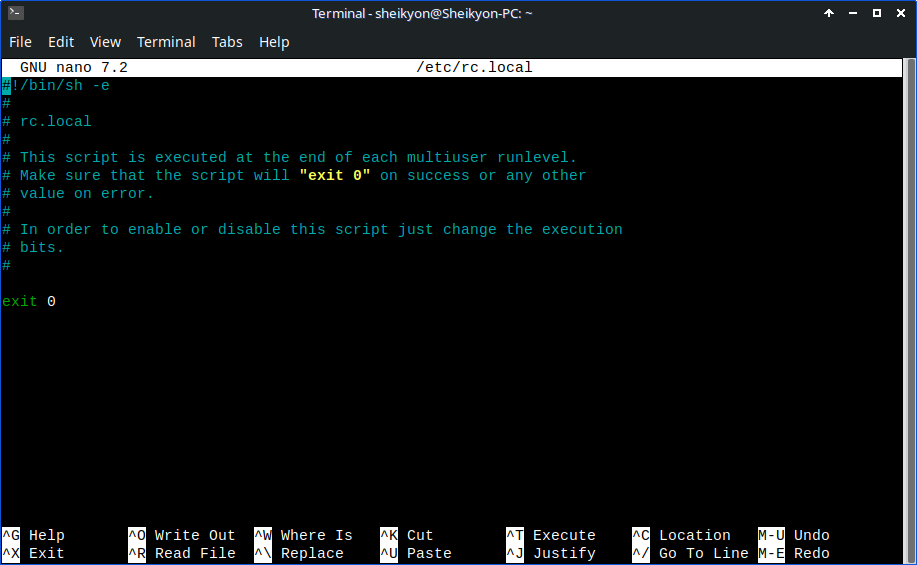
Just after the exit 0 we will add a /usr/bin/i8kfan 2 2 and we will save the changes made by pressing Ctrl + O + Enter which will make it run late after boot, this way we won't have to manually run the commands every time the machine boots. Finally,
1
sudo chmod +x /etc/rc.local
Early execution
But depending on what you are looking for, this may not be the most convenient option. For this we will need to configure a SysVinit script.
1
sudo nano /etc/init.d/i8k-fanspeed
And we will add the following,
1
2
3
4
5
6
7
8
9
10
[Unit]
Description=Dell i8kutils Fan Speed Control Daemon
After=network.target

[Service]
Type=forking
ExecStart=/usr/bin/i8kmon --daemon

[Install]
WantedBy=multi-user.target
And then,
1
sudo chmod +x /etc/init.d/i8k-fanspeed
Every time we start our machine, the fan speed will adjust to the speed we have defined.
Results
Depending on the environment, the thermal conductivity, and the overall quality of the paste used, we will get different results. My results on a Dell Precision M4300 and Dell Precision M2300 ranged from 23°C (73°F) as a minimum to 40°C (104°F) as a maximum. GPU temperatures remain stable around 35°C (95°F) and 45°C (113°F), even under heavy workloads, such as playing games or videos, tasks that by today's standards are heavy for a 2007 machine. I have gotten similar temperatures on a Dell Inspiron 6400 and a Dell Inspiron 1720.
| List of Dell laptops tested as compatible with i8kutils | ||
|---|---|---|
| Laptop | Processor | Graphics card |
| Dell XPS M1730 | Intel Core 2 Extreme (codenamed "Penryn XE") X9000 (2) @ 2.80 GHz | NVIDIA GeForce 9800M GTX |
| Dell XPS M1530 | Intel Core 2 Duo (codenamed "Merom") T7250 (2) @ 2.00 GHz | NVIDIA GeForce 8600M GT |
| Dell XPS M1210 | Intel Core 2 Duo (codenamed "Merom") T7200 (2) @ 2.00 GHz | NVIDIA GeForce Go 7400 |
| Dell Precision M6300 | Intel Core 2 Extreme (codenamed "Penryn XE") X9000 (2) @ 2.80 GHz | NVIDIA Quadro FX 3600M |
| Dell Precision M90 | Intel Core 2 Duo (codenamed "Merom") T7600 (2) @ 2.00 GHz | NVIDIA Quadro FX 2500M |
| Dell Precision M70 | Intel Pentium (codenamed "Dothan") M 780 (1) @ 2.26 GHz | NVIDIA Quadro FX Go1400 |
| Dell Inspiron 9100 | Intel Pentium (codenamed "Prescott") 4 550 (1) @ 3.4 GHz | ATI Mobility Radeon 9800 |
That, of course, won't prevent the GPU from failing in the future. For those bothered by noise, you may not want to run the Dell XPS M1730's heatsinks to their maximum RPM (revolutions per minute), given that they are really quite noisy, even when they are immaculate. The Dell XPS M1530 came equipped with an NVIDIA's GeForce 8600M GT — the same graphics card used by the 2007 and 2008 MacBook Pro — that holds the ominous reputation of being a truly time bomb with a high likelihood of premature failure. But in defiance of all possible odds, the graphics card in this Dell XPS M1530 I have in hand has not failed, and it is unlikely to end up failing in the long-term given the little use it has received. Perhaps because this laptop is in pristine condition, and the previous owner used it very few times since he bought it.
The Dell XPS M1530 graphics card temperatures remain stable around 34°C (93,2°F) and 48°C (118°F) degrees under relatively heavy workloads from Linux Mint, such as watching videos in 1080p, which suggests that Dell has put a good cooling system into this laptop, although it is unable to prevent its GeForce 8600M GT from failing. The Dell Precision M6300 with an NVIDIA Quadro FX 3600M — related to the GeForce 8800M GTX — released in 2008 using the also affected G92 core based on the "Tesla" architecture achieved stable temperatures that stayed around 41°C (105°F) minimum and 54°C (132°F) maximum degrees under similar workload on MX Linux.
Conclusion
That said, it is worth clarifying that this configuration does not prevent the feared "bumpgate" or "underfill layer defect" in both NVIDIA and certain ATI graphics cards, which are prone to dying from sustained overheating. It is often asserted that reballing will fix it, but the problem lies within the primary GPU chip itself. Therefore, this defect has no solution at all, at least not one you can do from home.
Given this situation, the best thing you can do, and what I personally suggest you do, is to stay away from laptops based on the unreliable NVIDIA GeForce 86xxM GT and 84xxM GT, as well as certain machines based on ATI graphics which are often as unreliable, or even more so, than those based on NVIDIA graphics. If you don't want to or can't, you will need to pay close attention to your machine's heat dissipation capacity in order to delay the onset of failure. Not all graphics cards based on the G8x core are defective, but a large portion of them are.
If you need information, help, or assistance regarding one of the aforementioned machines, such as the Dell Precision M4300 or the Dell Precision M2300, please don't hesitate to contact me. No, they are not for sale, and I have no intention of selling them. Avoid insisting.